 Maxim Spencer
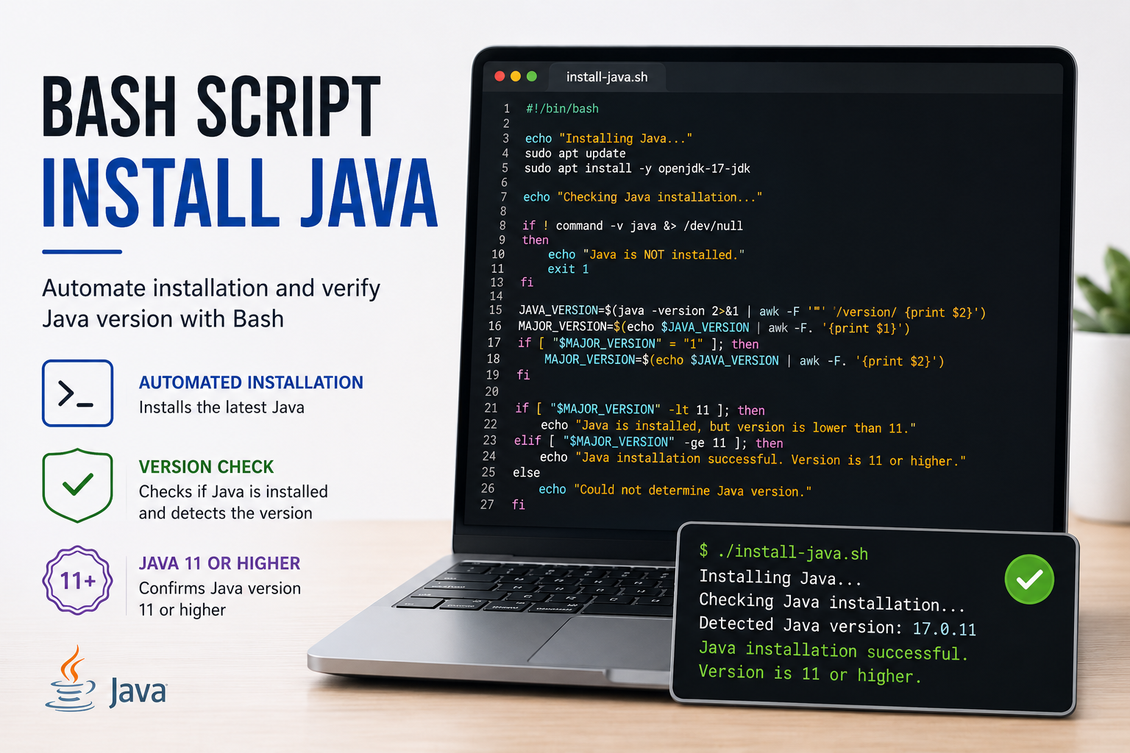
Table of contents
Introduction
In this exercise, I wrote a Bash script that installs Java on Ubuntu and checks whether the installation worked.
The script does more than run an install command. It also checks the Java version and confirms whether the system has Java 11 or higher.
This was a useful beginner exercise because it showed me how Bash scripts can automate a task, check the result, and print helpful messages instead of making me verify everything manually.
Why This Matters
Java is used by many applications and DevOps tools. One common example is Jenkins, which is widely used for CI/CD automation.
In real DevOps work, installing software is usually not done one click at a time. It is often automated with scripts or configuration tools so the same setup can be repeated on different servers.
This exercise helped me practice that idea on a small scale: install Java, check Java, and report the result.
The Goal
The goal was to create a Bash script that:
- Installs Java
- Checks whether the
javacommand exists - Reads the installed Java version
- Detects whether the version is lower than Java 11
- Confirms when Java 11 or higher is installed
- Prints clear messages for each condition
The script should only consider the installation successful if Java 11 or higher is available.
Tools and Technologies Used
For this exercise, I used:
- Ubuntu Linux
- Bash
- Vim
apt- OpenJDK
java -versioncommand -vawkif,elif, andelsestatements
Step-by-Step Process
Step 1: Create the Script File
I created a new script file with Vim:
vim install-java.sh
Then I pressed i to enter Insert Mode so I could start typing into the file.
Step 2: Add the Bash Script
This is the script I used:
#!/bin/bash

echo "Installing Java..."

sudo apt update
sudo apt install -y openjdk-17-jdk

echo "Checking Java installation..."

if ! command -v java &> /dev/null
then
    echo "Java is NOT installed."
    exit 1
fi

JAVA_VERSION=$(java -version 2>&1 | awk -F '"' '/version/ {print $2}')

if [ -z "$JAVA_VERSION" ]; then
    echo "Java is installed, but the version could not be detected."
    exit 1
fi

echo "Detected Java version: $JAVA_VERSION"

MAJOR_VERSION=$(echo "$JAVA_VERSION" | awk -F. '{print $1}')

if [ "$MAJOR_VERSION" = "1" ]; then
    MAJOR_VERSION=$(echo "$JAVA_VERSION" | awk -F. '{print $2}')
fi

if [ "$MAJOR_VERSION" -lt 11 ]; then
    echo "Java is installed, but the version is lower than 11."
elif [ "$MAJOR_VERSION" -ge 11 ]; then
    echo "Java installation successful. Version is 11 or higher."
else
    echo "Could not determine Java version."
fi
Step 3: Make the Script Executable
Before running a script file directly, Linux needs permission to execute it.
I used:
chmod +x install-java.sh
Step 4: Run the Script
Then I ran the script:
./install-java.sh
The script installed Java, checked whether the java command was available, found the version, and printed a success message because the installed version was Java 11 or higher.
Step 5: Confirm the Result
After running the script, the terminal printed the installation and validation messages:
I also checked the installed Java version manually:
Understanding the Script in Simple Terms
#!/bin/bash
This is called a shebang. It tells Linux to run the script with Bash.
sudo apt update
This refreshes Ubuntu's package list. I think of this as Ubuntu checking what software versions are available before installing anything.
sudo apt install -y openjdk-17-jdk
This installs OpenJDK 17, which meets the exercise requirement because it is higher than Java 11.
The -y option automatically answers yes to the install prompt. That is useful in scripts because the script can continue without waiting for manual input.
command -v java
This checks whether Linux can find the java command.
In the script, I used it like this:
if ! command -v java &> /dev/null
then
    echo "Java is NOT installed."
    exit 1
fi
The ! means "not." So this part means: if the system cannot find Java, print an error message and stop the script.
JAVA_VERSION=$(...)
This stores the output of a command inside a variable.
In my script:
JAVA_VERSION=$(java -version 2>&1 | awk -F '"' '/version/ {print $2}')
The script runs java -version, extracts only the version number, and saves it as JAVA_VERSION.
2>&1
This part looked confusing at first.
Normally, commands can print two kinds of output:
- Standard output, which is regular command output
- Standard error, which is often used for errors or diagnostic messages
The java -version command prints its version information to standard error. The 2>&1 part redirects that output so the script can process it.
awk
awk is a text-processing tool. It can split text into pieces and print the piece you want.
For example:
echo "apple banana cherry" | awk '{print $2}'
Output:
banana
In the Java script, awk helped pull the version number out of text like this:
openjdk version "17.0.15" 2025-04-15
The script only needed 17.0.15, so awk helped extract that part.
if, elif, and else
These statements allow the script to make decisions.
In this exercise, the script checks:
- Is Java missing?
- Is Java installed, but older than version 11?
- Is Java installed with version 11 or higher?
That is what makes the script smarter than just a list of commands.
Troubleshooting / What Confused Me
The hardest part was understanding how the script pulled out the Java version.
When I run:
java -version
the output is not just a clean number. It includes extra text, quotation marks, and a full version string.
At first, this made the script look complicated. Once I understood that awk was splitting the output and grabbing one specific piece, the logic became easier to follow.
I also learned that Java versions can be written in different formats. Older Java versions can look like 1.8.0, while newer versions usually start directly with the major version, like 11, 17, or 21.
That is why the script has a small extra check for versions that start with 1.
What Finally Clicked For Me
The big lesson was that Bash scripts can make decisions based on command output.
Before this exercise, I mostly thought of a script as a saved list of terminal commands. This exercise showed me that a script can:
- Install software
- Check whether the install worked
- Save command output into variables
- Read and process text
- Compare values
- Print different messages depending on what happened
That made Bash feel much more useful for real automation.
Biggest Takeaways
This exercise helped me understand that:
chmod +xmakes a script executablecommand -vchecks whether a command exists$(...)stores command output in a variable2>&1redirects output so the script can process itawkcan extract useful text from command outputif,elif, andelselet scripts make decisions- A good script should install software and verify the result
Final Thoughts
This exercise made Bash scripting feel more practical.
This was a small script, but it helped me understand how installation, validation, and basic troubleshooting can fit together in one repeatable workflow.